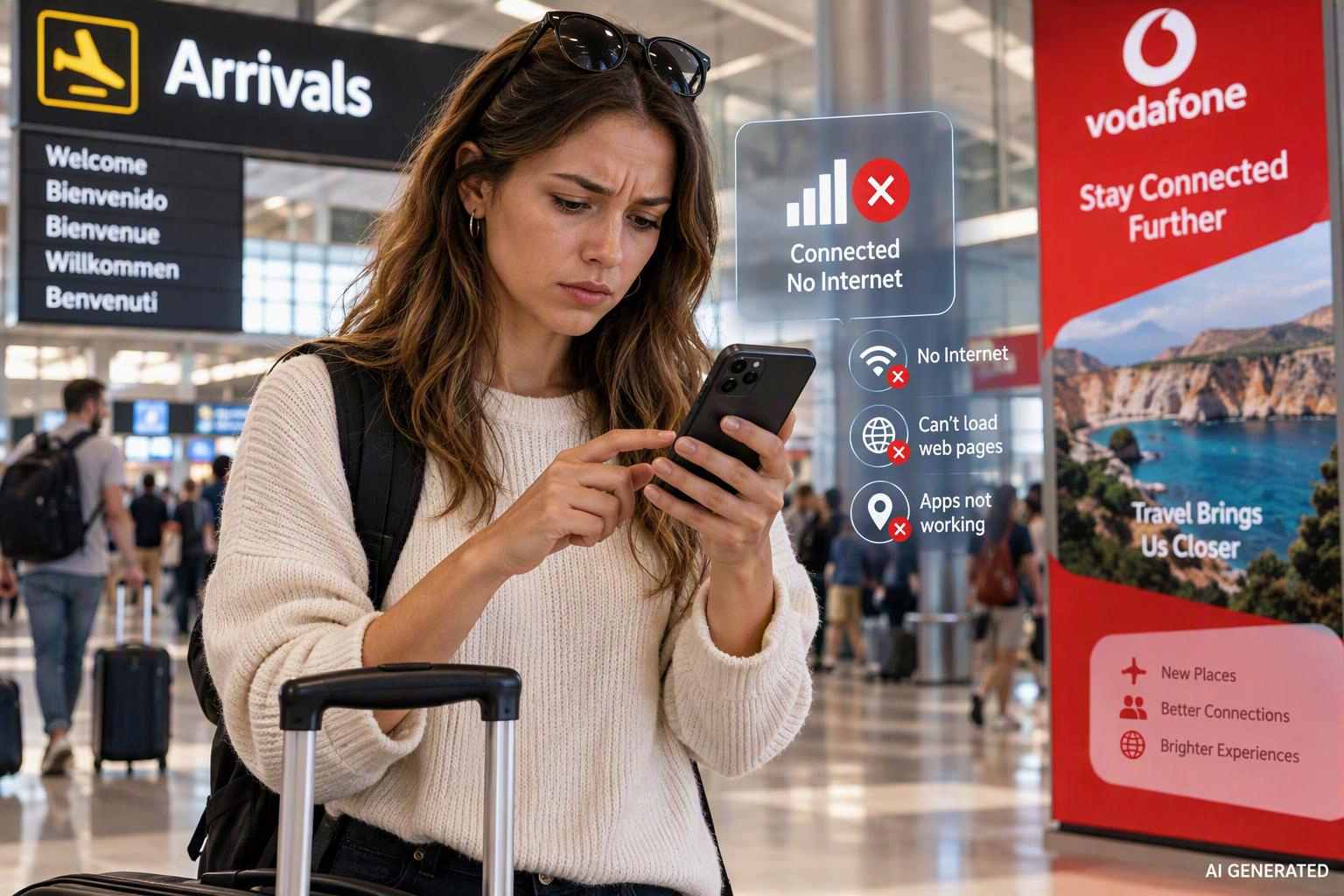
eSIM Connected but Internet Not Working? Here's How to Fix It
Few travel tech problems are more frustrating than arriving at your destination, seeing signal bars on your phone, and still being unable to access the internet. Your travel eSIM appears connected, your device shows network coverage, yet Google Maps won't load, WhatsApp won't send messages, and your favourite travel apps seem completely stuck. The good news? In most cases, this problem is surprisingly easy to fix. Whether you're using an iPhone, Samsung Galaxy, Google Pixel, or another eSIM-compatible device, there are several simple troubleshooting steps that can get you back online in minutes. This guide walks through the most common reasons an eSIM shows as connected but mobile data isn't working, along with practical fixes that work for travellers worldwide.
If you're completely new to travel eSIMs, try Vodafone Travel eSim for best results.
Why Does My eSIM Show Connected but Have No Internet?
When your phone displays signal bars, it means your device has successfully connected to a mobile network. However, being connected to a network isn't exactly the same as having a working internet connection. Think of it like connecting your laptop to a hotel Wi-Fi network. You might be connected to the router, but if the network configuration isn't correct, you still won't have internet access. Some of the most common reasons include:
Mobile data disabled
Data roaming turned off
Incorrect APN settings
Wrong SIM selected for data
Network registration issues
Carrier lock restrictions
Expired or inactive data plans
Device compatibility problems
Local network outages
Before assuming your eSIM has failed, work through the fixes below one by one.
1. Check That Mobile Data Is Enabled
This sounds obvious, but it's one of the most common causes of travel connectivity issues. Many travellers install their eSIM successfully but forget to enable mobile data on the eSIM line itself.
On iPhone
Open
Settings
Tap
Mobile Data
Confirm
Mobile Data
is switched on
Check that your travel eSIM is selected as the active data line
On Android
Open
Settings
Tap
Connections
or
Network & Internet
Open
SIM Manager
Confirm mobile data is enabled
Make sure the eSIM is selected for data usage
If you're travelling internationally, you may wanna get connected to a Vodafone Travel eSim to avoid roaming charges.
2. Turn On Data Roaming
One of the biggest misconceptions about travel eSIMs is that roaming should always stay switched off.
In reality, many travel eSIM providers require data roaming to be enabled because they connect through partner networks abroad. Your eSIM can show a strong signal while providing no internet access if roaming is disabled.
On iPhone
Settings → Mobile Data → Select Your eSIM → Data Roaming → ON
On Android
Settings → SIM Manager → Travel eSIM → Roaming → ON
Don't worry, enabling roaming within your travel eSIM usually won't trigger unexpected charges because your plan already includes access to supported partner networks. After enabling roaming, wait two to three minutes and test your connection again.
3. Restart Your Device
It may sound basic, but restarting often resolves network registration issues immediately.
When your phone reconnects to the network, it refreshes:
IP settings
Network authentication
Carrier connections
Data routing
A simple reboot can often solve connectivity issues that appear much more serious.
Quick Restart Steps
Power your phone off completely
Wait 30 seconds
Turn it back on
Test internet access again
You'd be surprised how many travel connectivity issues disappear after a restart.
4. Verify the Correct SIM Is Managing Mobile Data
Many travellers use dual-SIM functionality.
For example:
Physical SIM = home number
Travel eSIM = data connection
Problems occur when the device continues trying to use the home SIM for data instead of the travel eSIM.
Check on iPhone
Settings → Mobile Data → Mobile Data Line Make sure your travel eSIM is selected.
Check on Android
Settings → SIM Manager → Mobile Data Choose the travel eSIM. If you're planning to keep your home number active while travelling.
5. Check Your APN Settings
APN stands for Access Point Name. This tells your phone how to connect to the carrier's internet network. Incorrect APN settings are one of the leading causes of "connected but no internet" errors.
Signs of an APN Issue
Signal bars visible
eSIM active
No websites load
Apps show "No Internet Connection"
How to Check APN Settings
iPhone
Settings → Mobile Data → eSIM → Mobile Data Network
Android
Settings → Mobile Networks → Access Point NamesCompare the APN listed with the instructions provided by your eSIM provider.
If the settings don't match, update them, save the changes, and restart your device.
6. Switch Network Selection to Automatic
Some travellers manually select networks after arrival.
This can occasionally create problems if the selected network isn't the preferred partner for the eSIM provider.
Fix
Set network selection to Automatic.
iPhone
Settings → Mobile Data → Network Selection → Automatic
Android
Settings → Mobile Networks → Network Operators → Select Automatically
After a few moments, your device should reconnect to the most suitable partner network.
7. Confirm Your Data Plan Has Activated
A surprisingly common issue occurs when users install an eSIM but haven't actually activated the plan yet. Installation and activation aren't always the same thing.
Depending on your provider:
Activation may happen on arrival
Activation may occur when the eSIM first connects
Activation may require manual confirmation
Check:
Your provider's app
Activation emails
Order confirmation details
8. Check Remaining Data Allowance
Some users assume they have a technical problem when they've actually used all available data.Many travel eSIM packages include fixed data allowances.
Examples:
5GB
10GB
20GB
50GB
Heavy activities such as:
Streaming HD video
Video calling
Uploading photos
Hotspot sharing
can use significant amounts of data quickly.
Log into your provider account and verify:
Remaining balance
Plan validity
Expiry date
No remaining data often results in a connection appearing active while internet access is restricted or stopped.
9. Check Whether Your Phone Is Carrier Locked
Travel eSIMs generally require an unlocked device.
If your phone is still locked to a specific carrier, the eSIM may partially install but fail to work correctly.
Check on iPhone
Settings → General → AboutLook
for:
Carrier Lock: No SIM Restrictions
Check on Android
Carrier lock status varies by manufacturer, but can typically be found in:
Settings → About Phone → SIM StatusLocked devices may require unlocking from the original carrier before travelling.
10. Update Your Operating System
Outdated software can sometimes create network compatibility issues.
Check for updates:
iPhone
Settings → General → Software Update
Android
Settings → System → Software Update
Updated software often includes:
Network fixes
eSIM improvements
Carrier compatibility updates
Security enhancements
11. Reset Mobile Network Settings
If everything else has failed, resetting network settings often resolves hidden configuration issues.
iPhone
Settings → General → Transfer or Reset iPhone → Reset → Reset Network Settings
Android
Settings → System → Reset Options → Reset Mobile Network Settings
Note that saved Wi-Fi passwords may also be removed.
12. Verify Coverage in Your Current Location
In some situations, your eSIM is functioning correctly, but coverage is limited where you're standing. This is especially common in:
Underground transport systems
Remote beaches
Mountain regions
Rural areas
Tunnels
Large indoor venues
Move outdoors and test again.
When Should You Contact Support?
If you've completed all of the steps above and still have no internet access, it's time to contact your eSIM provider.
Be prepared to provide:
Device model
Phone operating system
Destination country
Network name displayed on screen
Screenshots of settings
Error messages
Support teams can usually identify activation issues, provisioning errors, or regional network restrictions much faster when this information is available.
Quick Troubleshooting Checklist
Before contacting support, confirm:
✅ Mobile data enabled ✅ Travel eSIM selected for data ✅ Data roaming switched on ✅ APN settings verified ✅ Network selection set to automatic ✅ Phone restarted ✅ Data allowance available ✅ Carrier lock removed ✅ Software updated ✅ Coverage available at location
In many cases, one of these checks fixes the issue within minutes.
Get Connected Before Your Trip Starts
The easiest way to avoid connectivity problems abroad is to prepare before departure. Install your travel eSIM while you still have access to reliable Wi-Fi, double-check your settings, and confirm your device is eSIM-compatible before boarding your flight.
Whether you're heading to Europe, the USA, Japan, Thailand, or beyond, having mobile data ready on arrival means instant access to maps, transport apps, booking confirmations, and messaging services. Browse Vodafone Travel eSIM plans before your next trip and get connected from the moment you land.
AI Declaration
This article was created with the assistance of artificial intelligence and reviewed, edited, and structured for publication in line with Vodafone Travel content standards. All guidance is intended as general informational advice and should be verified against your device manufacturer and eSIM provider instructions where applicable.
Read More

Can eSIMs Work on Cruise Ships? A Complete Guide to Staying Connected at Sea
Can eSIMs work on cruise ships? Learn when they do, when they don't, and how to stay connected throughout your cruise.

First-Time Travel eSIM Customers Get 15% Off with Vodafone Travel
New to Vodafone Travel? Enjoy 15% off your first Travel eSIM order with code NEWTRAVELLERS15. Limited-time offer available from 8-22 October.

Vodafone Travel at World Aviation Festival 2026: Connecting the Future of Travel
Join Vodafone Travel at World Aviation Festival, 13-15 October, to discover how global eSIM connectivity is transforming the traveller experience.